

Azure AD
Read about Avion's SSO integration with Azure Active Directory (Azure AD).
Step 1: Choose your SSO provider
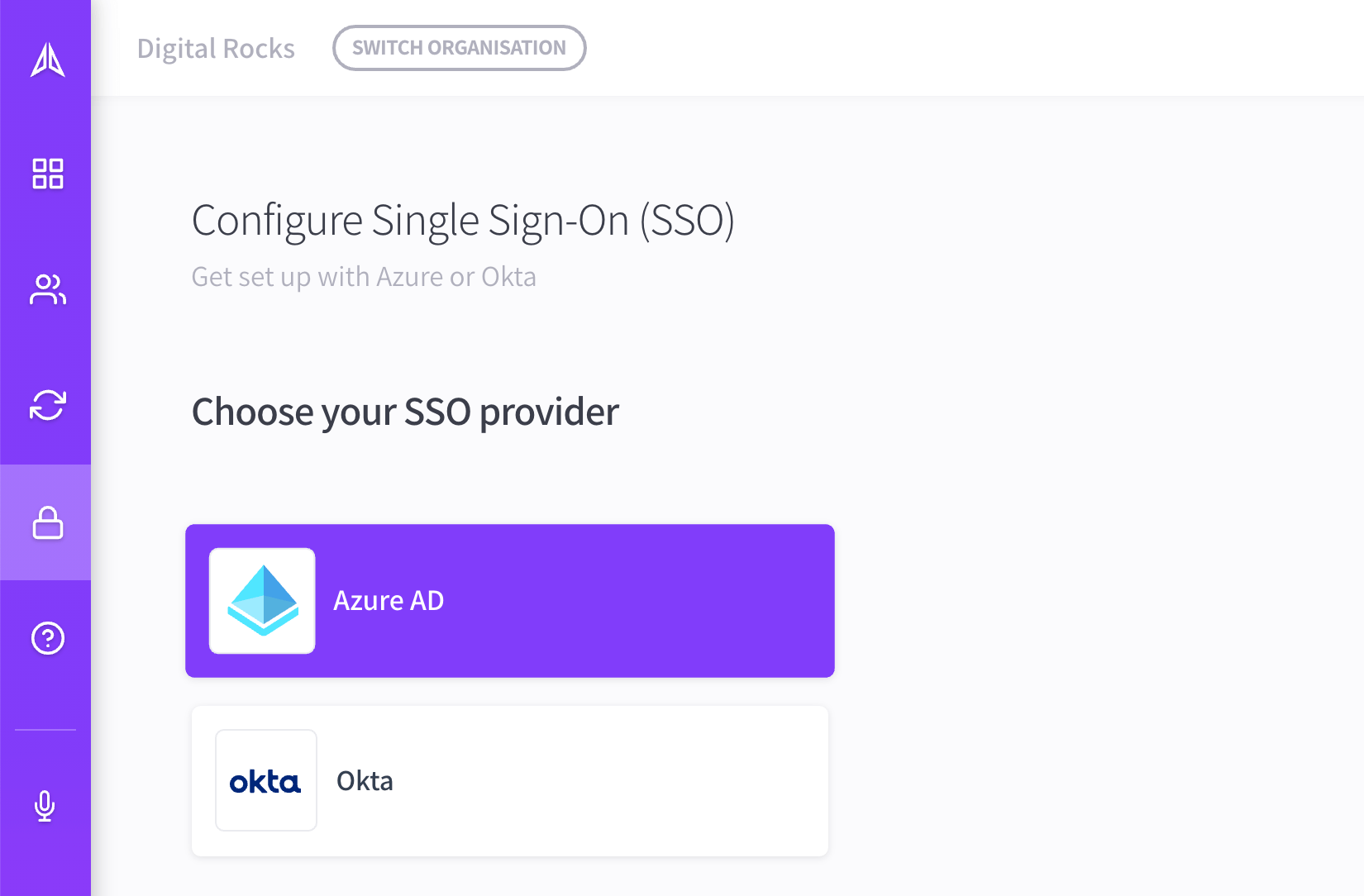
In Avion, go to your organization's Single Sign-On section. Select Azure AD from the list of available providers:
Step 2: Configure SSO
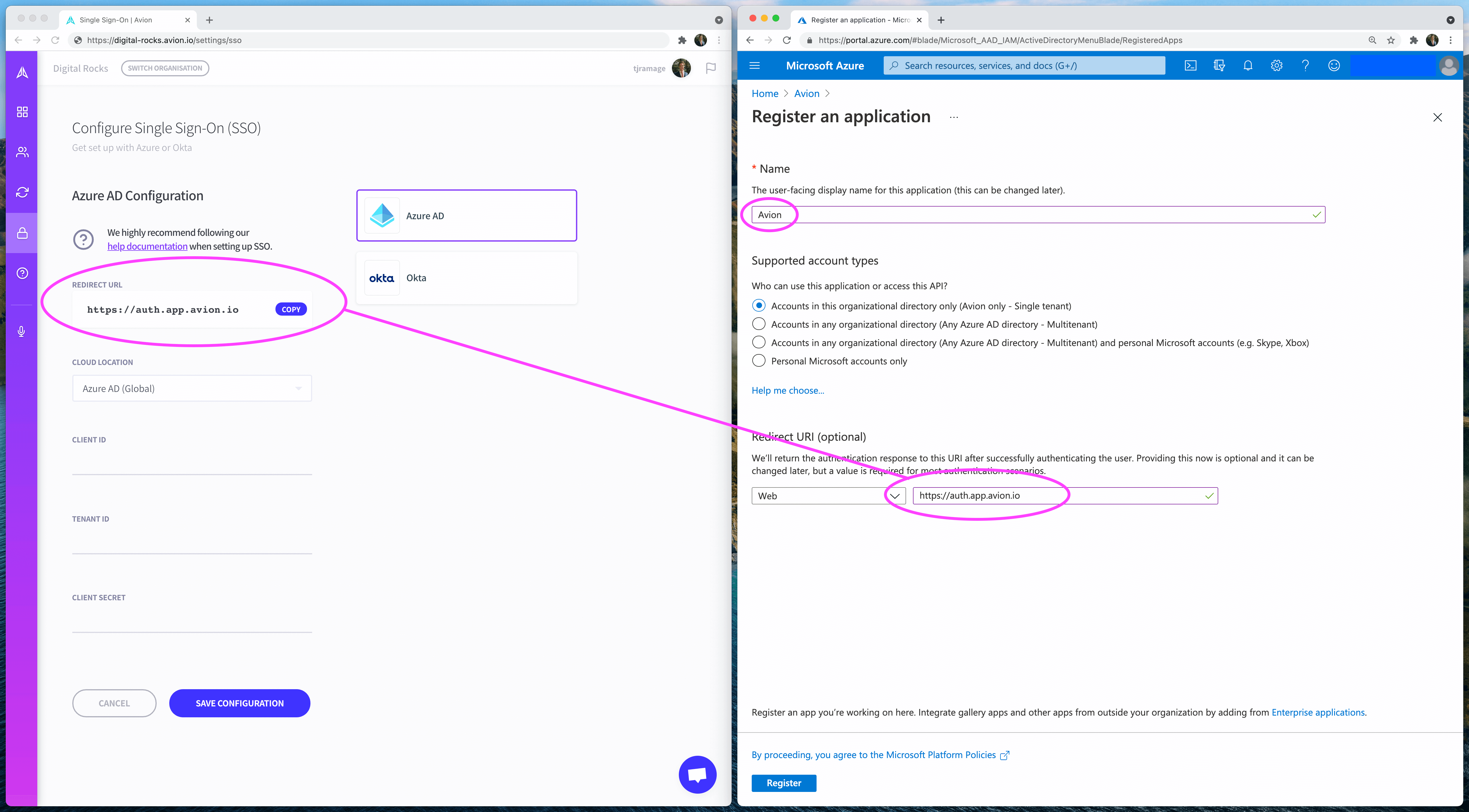
In Azure AD, register a new application:
- Set your application name to Avion
- Copy across your specific Redirect URL from the Avion configuration form into the Application form in the Azure portal
- Finally, hit the Register button to create the application
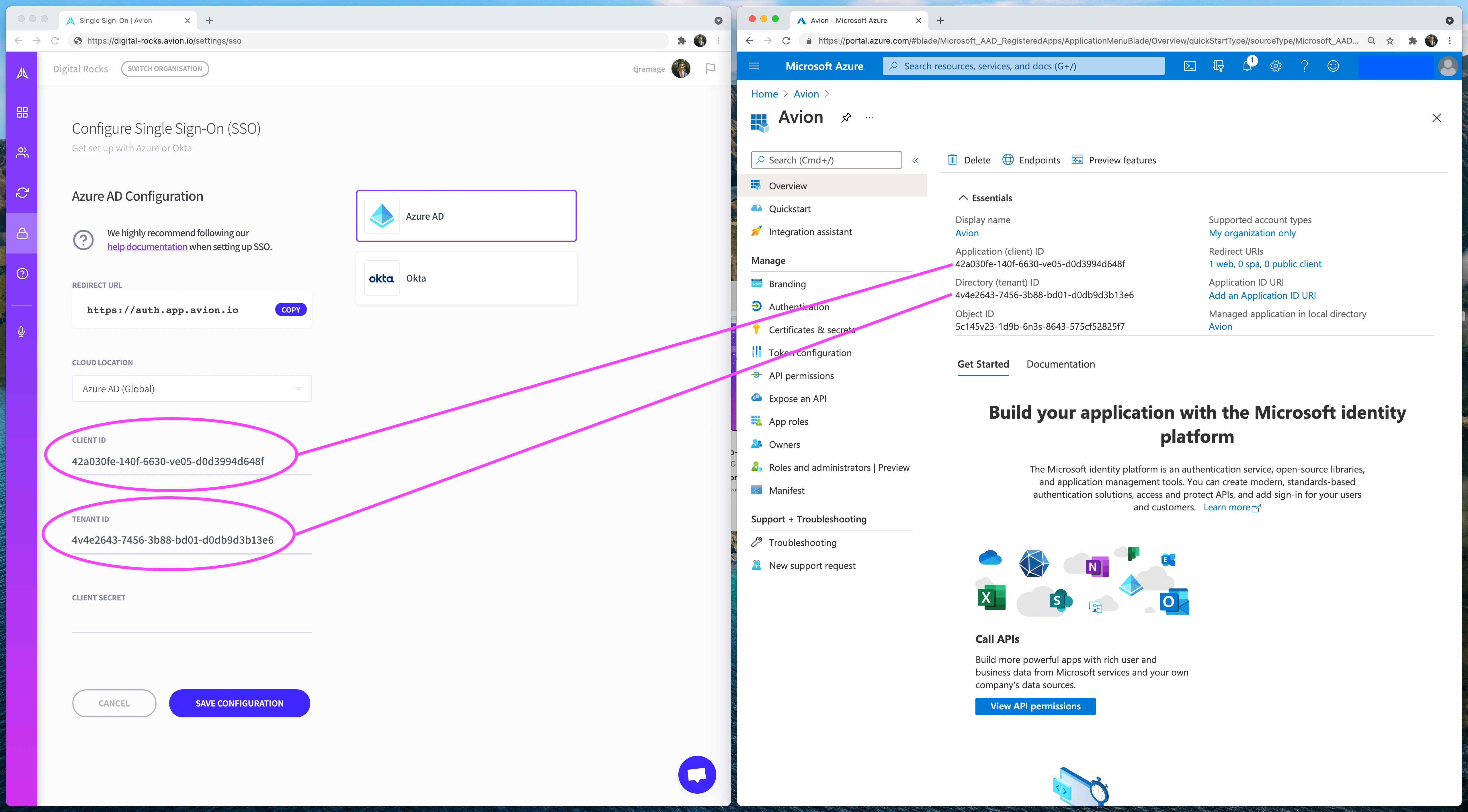
On the following screen, in Azure AD, copy and paste both the Client ID and Tenant ID into the Avion configuration form:
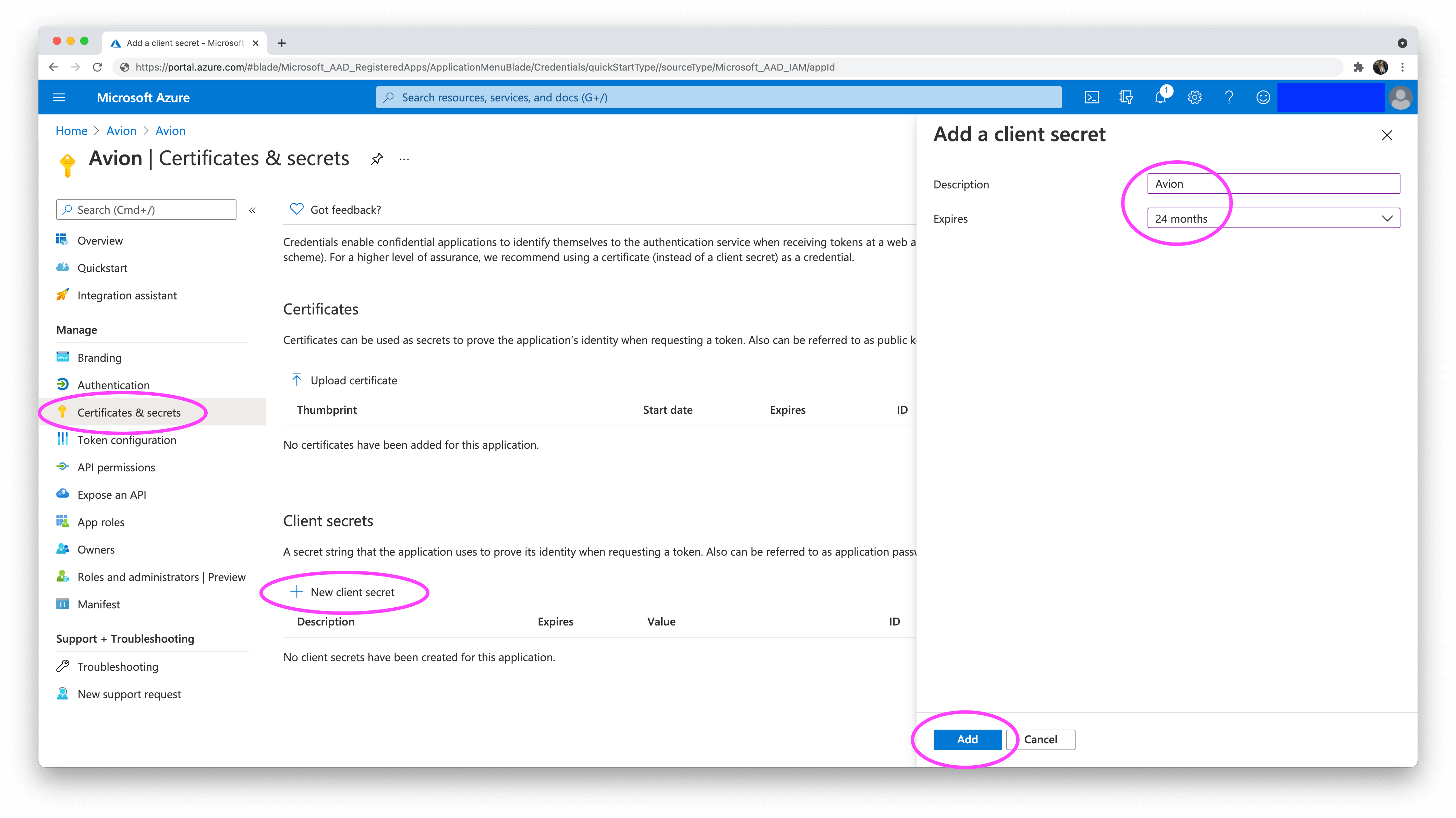
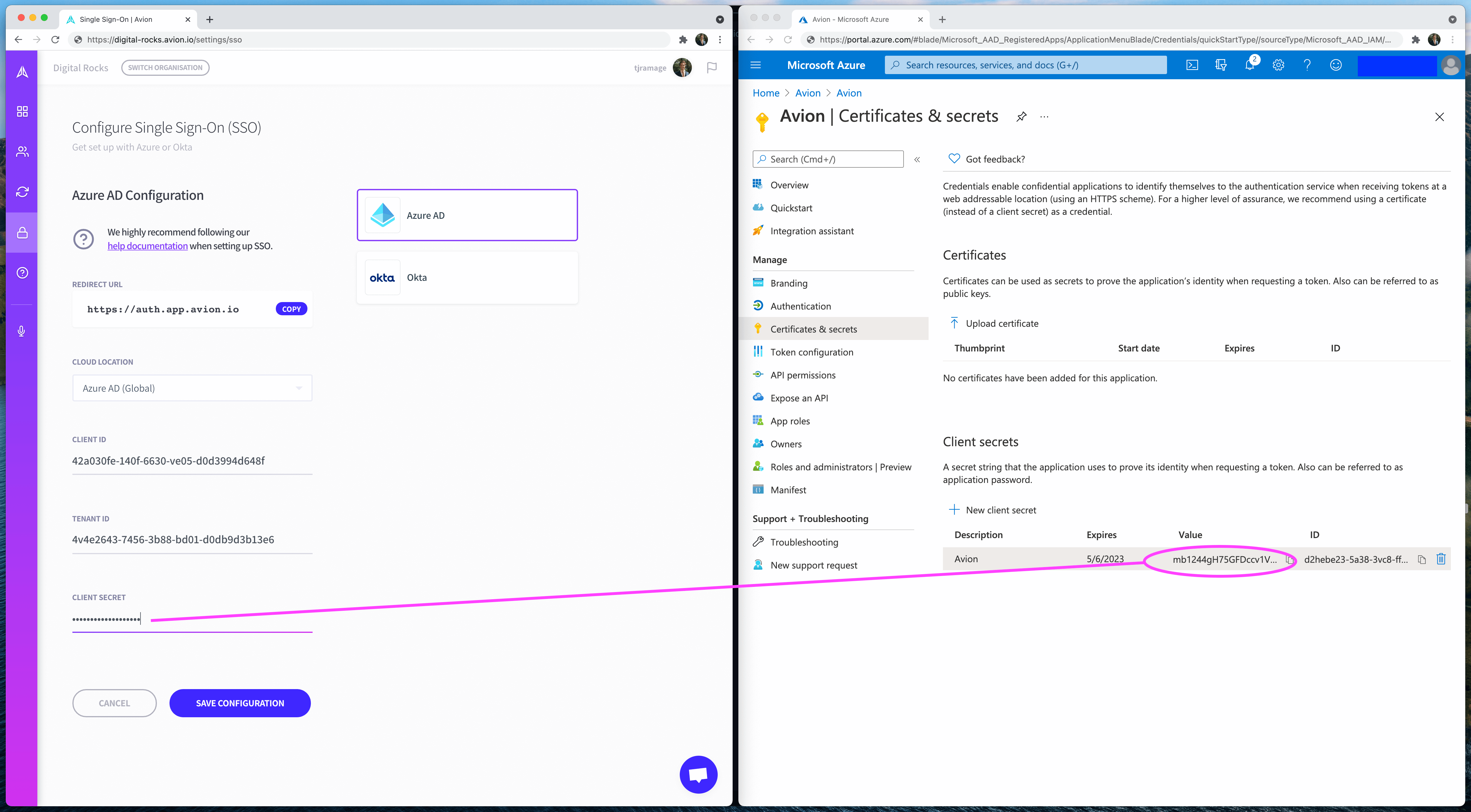
Next, in Azure AD, create a new Client Secret:
Then copy and paste your secret from Azure AD into the Client Secret field in Avion:
Finally, in Avion, hit Save Configuration and you're done! 🎉